
Our Top Picks
 New! Sceptre Curved 27-inch Prime Gaming Monitor DisplayPort27 inches7.7 x 24.4 x 17.9 inchesCheck on Amazon
 New! Sceptre Curved 34-inch Prime Gaming Monitor 344034 inches8.5 x 31.8 x 18 inches14 PoundsCheck on Amazon
Top 3 Picks
Best overall: The Samsung 32″ Odyssey (G55C) QHD 1000R is the monitor most people should buy first. Its 1000R curve wraps the eye line tightly enough to feel genuinely immersive at 32 inches, while QHD resolution keeps text and game detail crisp on a mainstream desk.
Best budget: The Sceptre Curved 27-inch Prime Gaming Monitor gives you a 1500R curve and a 180Hz refresh rate at a price that leaves room for a decent desk and chair. It is the pick for first-time curved buyers who want smoothness over pixel density.
Best premium: The Samsung 49-inch Odyssey G9 (G91F) DQHD turns a 32:9 super-ultrawide panel into a whole workbench. It replaces a dual-monitor setup with one seamless surface, which is why it commands the premium tier. If 49 inches is too much desk, the LG 34G600A-B is the best “step-down” premium choice.
Quick Comparison
Every monitor below is matched to a curve, a panel type, a resolution and a realistic best-use case. Prices are shown only as tiers because listing prices change daily.
| Product | Best For | Key Specs | Price Tier |
|---|---|---|---|
| Samsung 32″ Odyssey (G55C) | All-round gaming and productivity on a mid-depth desk | 32″, QHD 2560×1440, 1000R, VA, gaming-grade refresh | Mid-range |
| Sceptre Curved 27″ Prime Gaming | Budget 1080p gaming with dual DisplayPort | 27″, FHD 1920×1080, 1500R, up to 180Hz, 1ms, built-in speakers | Budget |
| Sceptre Curved 34″ Prime Gaming | Ultrawide gaming and multitasking | 34″, 3440×1440, 1500R, 1ms, 100% sRGB, up to 240Hz, dual DP | Premium |
| LG 32MR50C-B | Work-first 32″ curved display with FreeSync | 32″, FHD, up to 100Hz, AMD FreeSync, VA | Mid-range |
| Samsung 27″ Essential S3 (S36GD) | Light work, browsing, secondary display | 27″, FHD, 1800R, slim everyday design | Budget |
| LG 32G600A-B Ultragear | QHD gaming with accurate response | 32″, QHD 2560×1440, 180Hz, 1ms, AMD FreeSync | Mid-range |
| SANSUI 32″ Curved 240Hz | High-refresh 1080p esports on a budget | 32″, FHD 1080p, up to 240Hz, curved VA | Mid-range |
| Samsung 49″ Odyssey G9 (G91F) | Replacing a dual-monitor workstation | 49″, DQHD 5120×1440, 32:9, 144Hz, DisplayHDR 600, deep curve | Premium |
| LG 32GS60QC-B Ultragear | Immersive QHD gaming with a tight 1000R wrap | 32″, QHD 2560×1440, 180Hz, 1ms, 1000R, AMD FreeSync, HDR10 | Mid-range |
| LG 34G600A-B Ultragear | Ultrawide productivity plus gaming | 34″, WQHD 3440×1440, 160Hz, AMD FreeSync Premium, HDR10 | Premium |
| Sceptre 27″ Curved Gaming 240Hz | Cheapest path to 240Hz | 27″, FHD 1080p, 240Hz, 1500R, DisplayPort + 2x HDMI, speakers | Budget |
| LG 27GS60QC-B Ultragear | Sharp QHD at the smallest size here | 27″, QHD 2560×1440, 180Hz, 1ms, 1000R, AMD FreeSync, HDR10 | Budget |
How We Chose
We built this list around measurable fit rather than marketing language. Curve radius was the first filter: 1800R is a gentle arc that suits shallow desks and casual setups, 1500R is the mainstream middle ground that works for most gaming and office configurations, and 1000R wraps tightly enough that you sit inside the image rather than in front of it. Diagonal size and resolution came second, because a 27-inch 1080p panel and a 27-inch 1440p panel are very different products even though the boxes look identical.
Panel technology was the third filter. VA panels dominate the curved market because they bend without the light leakage problems that plague curved IPS, and they deliver deep contrast for dark-scene gaming. IPS alternatives show up mainly in flat ultrawides, so this list leans VA where the curve matters. We also weighted resolution against viewing distance: 1080p is fine at 27 inches and up to about 32 inches for gaming, but 1440p is the better match for text-heavy work at 32 inches and above.
Finally, we checked upgrade paths. Multitasking buyers get priority on ultrawides and 32:9 panels; refresh-rate chasers get priority on 240Hz options; and mixed work-and-play buyers get priority on QHD 32-inch models. Every pick below earned its slot by fitting a specific situation, not by topping a spec sheet. We are not claiming to have tested, benchmarked, or owned any of these units — the criteria above are drawn from published specifications, panel technology fundamentals, and how curved monitors are used in real rooms.
1. Samsung 32″ Odyssey (G55C) – Best Overall

Samsung 32" Odyssey (G55C) Series QHD 1000R Curved Gaming Monitor,
Picked as a relevant option in this category.
Check Price on AmazonThe G55C is the monitor that answers the most common question in curved buying: what do I get if I want the curve to actually do something? At 32 inches with a 1000R radius, the panel bends hard enough that the left and right edges angle toward your eyes instead of away from them. That geometry is the entire point of a curved monitor, and Samsung applies it here at a size most desks can absorb.
Who It Suits
Buy this if you split your time between games and everyday desktop work and you sit roughly 24 to 32 inches from the screen. It suits a mid-depth desk where a 49-inch ultrawide would crowd your speakers or force you to sit too close. It also suits anyone upgrading from an old flat 24-inch display, because the combination of a larger diagonal and a tighter curve produces an obvious, immediate difference.
Key Specs
- Size: 32 inches diagonal
- Resolution: QHD 2560 x 1440
- Curve: 1000R (aggressive wrap)
- Panel: VA, curved
- Target use: Gaming with mixed productivity
- Connectivity class: HDMI plus DisplayPort, standard gaming monitor arrangement
Strengths
QHD at 32 inches lands in a sweet spot for pixel density. You get noticeably more desktop real estate than 1080p without the tiny-text problem that 4K introduces at the same size. The 1000R curve reduces the amount of eye travel needed to scan from the center to the corners, which matters more than people expect during long sessions. VA contrast means dark scenes in games look black rather than washed gray, which is the classic weakness of IPS panels in dim rooms.
For productivity, 2560 x 1440 is enough to run two documents side by side plus a browser, or a single wide spreadsheet without constant horizontal scrolling. That flexibility is why this is the overall pick rather than a specialist monitor.
Pros
- 1000R curve delivers real immersion at a mainstream size
- QHD resolution keeps text sharp for work
- VA contrast is strong for dark-room gaming
- 32-inch diagonal fits most standard desks without a corner-mounted arm
- Balanced for both gaming and desk work
Cons
- VA panels typically show more motion blur than IPS in fast panning scenes
- 1000R is aggressive enough that some users find it takes a few days to adjust
- Stand adjustments on gaming models in this class are often limited to tilt
- Not the cheapest way to get a curve
How It Compares
Against the LG 32GS60QC-B, the G55C and the LG trade blows: both are 32-inch QHD with a 1000R curve, so the practical difference comes down to stand design, on-screen menu quality, and current pricing at the moment you buy. Against the LG 32G600A-B, the Odyssey wins on curve tightness — the LG in that model is a gentler bend — while the LG tends to be the more conservative, work-friendly choice. Against the Sceptre Curved 34″ Prime, you give up ultrawide width but gain a tighter curve and a smaller footprint. If your desk is under 24 inches deep, buy the 27-inch curved Sceptre instead.
2. Sceptre Curved 27″ Prime Gaming – Best Budget
New! Sceptre Curved 27-inch Prime Gaming Monitor DisplayPort x2 180Hz HDMI x2 180Hz 1500R 1ms Build-in Speakers, Machine Black 2027 (C275B-FW180T Series)
Chosen because it specifies Machine Black 2027 (C275B-FW180T Series).
Check Price on AmazonSceptre has spent years building a reputation for packing high refresh rates into low-price monitors, and this 27-inch curved Prime model is the clearest example in this list. You get a 1500R curve, a 180Hz refresh ceiling, and two DisplayPort plus two HDMI inputs — a port count that normally appears on much more expensive displays.
Who It Suits
This is the monitor for a first gaming setup, a bedroom desk, or a secondary PC where the budget is genuinely tight. It also suits anyone whose GPU targets 1080p: a 27-inch FHD panel is easy to drive at high frame rates, so the 180Hz ceiling is actually reachable rather than theoretical. If you mostly play competitive shooters and want smoothness over detail, this makes more sense than a 1440p panel you cannot feed properly.
Key Specs
- Size: 27 inches diagonal
- Resolution: FHD 1920 x 1080
- Curve: 1500R (moderate wrap)
- Refresh rate: up to 180Hz
- Response time: 1ms class (marketing figure; real-world response is slower)
- Inputs: 2x DisplayPort, 2x HDMI
- Audio: built-in speakers
Strengths
The dual DisplayPort arrangement is unusually generous at this price. It means you can leave a desktop and a console or second machine connected without swapping cables, or run a monitor arm setup with two sources and switch inputs from the menu. Built-in speakers remove the need for a separate soundbar on a minimal desk, even if they are not a substitute for real speakers or headphones.
The 1500R curve is the safe middle choice. It adds a sense of wrap without the adjustment period that a 1000R panel demands, and it looks natural for desktop work where an aggressive curve can make spreadsheet rows feel slightly bowed. At 27 inches, 1080p is dense enough for general use and light gaming, though you will notice the pixel grid if you sit very close.
Pros
- Highest input count in the budget tier
- 180Hz is reachable with a mid-range GPU at 1080p
- Built-in speakers suit minimal desks
- 1500R curve is comfortable for both gaming and work
- 27-inch size fits shallow desks
Cons
- 1080p at 27 inches is not ideal for text-heavy work
- Budget stands usually offer tilt only
- Colour accuracy out of the box is typically basic, not professional-grade
- Speakers are adequate for notifications, not for immersion
How It Compares
Versus the Sceptre 27″ Curved Gaming 240Hz, this Prime model trades peak refresh for a lower price and possibly better input variety — the 240Hz sibling exists purely to chase frame rate. Versus the LG 27GS60QC-B, the LG is the better choice for sharpness because it runs QHD at the same 27 inches, while this Sceptre wins on price and port count. Versus the Samsung 27″ Essential S3, the Sceptre is a gaming monitor and the Samsung is a general-purpose display; the Sceptre is faster, the Samsung is usually calmer for office work.
3. Sceptre Curved 34″ Prime Gaming – Best Premium Ultrawide Value
New! Sceptre Curved 34-inch Prime Gaming Monitor 3440 x 1440 up to 240Hz 1500R 1ms 100% sRGB DisplayPort x2 HDMI x2 Build-in Speakers, Machine Black 2027 (C345B-QU240T Series)
Chosen because it specifies Machine Black 2027 (C345B-QU240T Series).
Check Price on AmazonThis is a lot of monitor for the money: 34 inches, 3440 x 1440 ultrawide resolution, a 1500R curve, and a refresh rate that climbs as high as 240Hz. Sceptre also lists 100% sRGB coverage, which pushes it beyond pure gaming into light creative work.
Who It Suits
Buy this if you want one screen to replace two. A 3440 x 1440 ultrawide gives you the horizontal workspace of roughly one and a half 1440p monitors, which means three columns of documents, a full timeline in a video editor, or a wide field of view in racing and simulation games. It suits a desk at least 30 inches deep so the curve wraps around your viewing position instead of sitting awkwardly close. It also suits buyers who want premium capability without paying super-ultrawide money.
Key Specs
- Size: 34 inches diagonal
- Resolution: 3440 x 1440 (ultrawide 21:9)
- Curve: 1500R
- Refresh rate: up to 240Hz
- Response time: 1ms class
- Colour: 100% sRGB coverage
- Inputs: 2x DisplayPort, plus HDMI
Strengths
The combination of ultrawide resolution and a 240Hz ceiling is rare in this price tier, and it is genuinely useful. For competitive games that support ultrawide, you see more of the scene without stretching. For desktop work, the extra horizontal pixels mean you stop alt-tabbing. The 1500R curve is important on a 34-inch ultrawide specifically: on a panel this wide, a flat screen forces your eyes to travel a long way, and a 1500R bend brings the far edges inward.
100% sRGB coverage makes it viable for photo editing, design, and video work where colour consistency across web content matters. That said, colour accuracy — how close those colours land to reference — is a separate question from coverage, and a calibration tool is worth borrowing or buying if colour work is your job.
Pros
- Ultrawide 3440 x 1440 replaces a dual-monitor setup
- 240Hz ceiling is unusually high for a 34-inch panel
- 100% sRGB supports light creative work
- 1500R curve suits the wide aspect ratio well
- Dual DisplayPort inputs suit two-source setups
Cons
- Needs a deep desk — under about 26 inches you sit too close to the edges
- Ultrawide support in some older games requires tweaks or letterboxing
- Driving 3440 x 1440 at high frame rates demands a strong GPU
- Bigger physical footprint than most buyers expect
How It Compares
Against the LG 34G600A-B, this Sceptre wins on refresh rate — the LG tops out at 160Hz — while the LG is the better-known quantity for panel quality and software support. Against the Samsung 49-inch Odyssey G9, this is the sensible middle step: you get ultrawide immersion without the 32:9 width or the deep-desk requirement. Against a 32-inch QHD like the Samsung G55C, you gain desktop width but lose the option of a smaller footprint. If your desk is shallow, stop here and pick a 32-inch instead.
4. LG 32MR50C-B – Best for Work-First Buyers
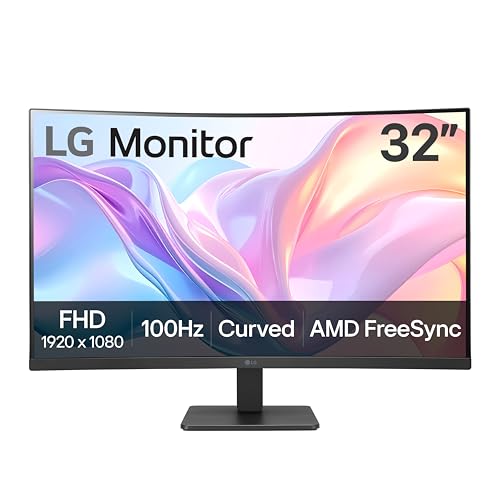
LG 32MR50C-B Curved Monitor 32-Inch FHD 100Hz AMD FreeSync OnScreen Control Dynamic Action Sync Black Stabilizer Tilt Stand (HDMI) - Black
Chosen because it specifies Black.
Check Price on AmazonThe 32MR50C-B is the odd one out in a gaming-heavy list, and that is deliberate. It is a 32-inch curved display running FHD with a 100Hz refresh ceiling, AMD FreeSync, and a bundle of LG software features aimed at people who sit at a desk all day rather than frag all night.
Who It Suits
Buy this if your monitor is primarily a work surface: documents, spreadsheets, video calls, browsers with too many tabs. The 32-inch diagonal gives you a big, comfortable canvas, and the gentle curvature reduces the eye travel required to scan from the left column of a spreadsheet to the right. The 100Hz refresh rate — versus the 60Hz of a standard office monitor — makes scrolling and window dragging visibly smoother, which is a quality-of-life upgrade that is hard to un-see once you have had it.
Key Specs
- Size: 32 inches diagonal
- Resolution: FHD 1920 x 1080
- Refresh rate: up to 100Hz
- Adaptive sync: AMD FreeSync
- Panel: VA
- Features: on-screen control software, dynamic action sync, black stabiliser
Strengths
LG’s on-screen control utility is the standout here. It lets you split the screen into predefined zones, adjust picture modes and brightness from the keyboard, and manage settings without hunting through a joystick menu. On a 32-inch panel, snap layouts and zone splitting are more useful than they sound, because the physical screen is large enough that two or three windows genuinely fit without overlap.
FreeSync support means the panel will match its refresh rate to your GPU’s output, which removes tearing in games without the stutter penalty of fixed vertical sync. Black stabiliser brightens shadow detail, a practical help in dark game environments and in poorly lit video calls.
FHD at 32 inches is the main compromise. Pixel density is low, so text edges are visibly softer than on a 1440p panel of the same size. If you read small fonts for hours, this matters.
Pros
- 100Hz refresh is smoother than standard 60Hz office panels
- FreeSync prevents tearing in casual gaming
- LG on-screen control adds real workflow flexibility
- 32-inch canvas suits multi-window work
- Black stabiliser helps dark content readability
Cons
- FHD resolution at 32 inches is soft for text-heavy work
- Not aimed at high-refresh competitive gaming
- Lower pixel density than every QHD model in this list
- Curvature is gentle, so immersion gains are modest
How It Compares
Against the LG 32G600A-B, the difference is resolution and speed: the G600A-B runs QHD at 180Hz, which is strictly better for gaming and sharper for work, so choose it if the budget allows. Against the Samsung 32″ Odyssey (G55C), the Samsung wins on curve tightness and QHD, while this LG wins if you value LG’s on-screen software and a calmer, less gamified look. Against the SANSUI 32″ Curved 240Hz, the SANSUI is built for frame rate and this LG is built for comfort — different priorities, similar size.
5. Samsung 27″ Essential S3 (S36GD) – Best for Everyday Desk Work

Samsung 27" Essential S3 (S36GD) Series FHD 1800R Curved Computer Monitor | 100Hz, Game Mode, Advanced Eye Comfort, HDMI and D-sub Ports (LS27D366GANXZA)
Picked as a relevant option in this category.
Check Price on AmazonThe Essential S3 is a 27-inch FHD curved monitor with an 1800R radius and a design philosophy that prioritises looking tidy on a desk. It is the gentlest curve in this roundup, which makes it the safest pick for buyers who are unsure about curvature at all.
Who It Suits
Buy this if you want a curved screen for general computing — email, browsing, streaming, documents — and you do not need a gaming refresh rate. The 1800R curve is subtle enough that it reads almost like a flat panel at first glance while still reducing edge distortion compared to a flat 27-inch display. It also suits a secondary monitor role, a home office setup, or a student desk where the priority is a clean, simple display that looks good from the front.
Key Specs
- Size: 27 inches diagonal
- Resolution: FHD 1920 x 1080
- Curve: 1800R (gentle)
- Aspect ratio: 16:9
- Target use: General productivity and media
- Design: slim, minimal, three-sided borderless styling typical of Samsung’s Essential line
Strengths
The 1800R curve is the selling point for a specific kind of buyer. If you have tried a 1000R display and found the wrap uncomfortable, or if you use your monitor for tasks where straight lines matter — reading long documents, working in design tools, scanning tables — the gentle arc is the better ergonomic choice. Samsung’s Essential series also tends to be physically slim, which helps on a cramped desk.
At 27 inches, 1080p is a reasonable density for casual use. It is not sharp enough for professional photo editing, and you will see individual pixels if you lean in, but at a normal viewing distance it is perfectly serviceable for the tasks this monitor is designed for.
Pros
- 1800R curve is comfortable and unobtrusive
- Slim design suits small desks
- 27-inch size is the easiest to place and reposition
- Simple setup with no gaming features to configure
- Usually the calmest-looking option in a living space
Cons
- No high refresh rate
- 1080p only, so no extra desktop resolution
- Not intended for competitive gaming
- Less immersive than a 1000R or 1500R panel
How It Compares
Against the Sceptre Curved 27″ Prime Gaming, the Sceptre is faster and has more inputs, while the Samsung is gentler on the eyes for all-day text. Against the LG 27GS60QC-B, the LG is dramatically sharper because it runs QHD, and it has a 1000R curve and 180Hz refresh — so if you game at all, the LG is the better buy. Against the LG 32MR50C-B, you trade a bigger 32-inch screen and 100Hz for a smaller, sharper-feeling 27-inch panel with a gentler curve.
6. LG 32G600A-B Ultragear – Best Balanced QHD Gaming
The 32G600A-B is LG’s straightforward answer to the question “what is the sensible 32-inch gaming monitor?” It runs QHD at 2560 x 1440, refreshes at 180Hz, quotes a 1ms response time, and supports AMD FreeSync.
Who It Suits
Buy this if you want one monitor for gaming and work and you are willing to pay for 1440p. It suits a desk 24 to 30 inches deep, a GPU from the mid-range upward, and a buyer who wants a well-known brand with a long track record in gaming panels rather than the lowest possible price. It is also the safe pick for someone who is uncertain about an aggressive curve: LG’s approach here is measured rather than extreme.
Key Specs
- Size: 32 inches diagonal
- Resolution: QHD 2560 x 1440
- Refresh rate: 180Hz
- Response time: 1ms class
- Adaptive sync: AMD FreeSync
- Inputs: HDMI and DisplayPort
Strengths
180Hz at QHD is the practical ceiling for most gaming rigs. Going higher means either dropping to 1080p or spending heavily on a GPU, so this monitor matches the hardware most people actually have. FreeSync keeps the refresh rate synced to the frame rate your GPU delivers, which removes tearing across the whole range, not just at the top.
QHD at 32 inches solves the text-sharpness problem that FHD panels at this size create. Icon sizes remain comfortable without scaling, and you get roughly 78% more pixels than 1080p, which translates directly into more usable workspace. For a monitor that will be used for both work and play, that resolution jump matters more than any single gaming feature.
Pros
- QHD resolution keeps text sharp at 32 inches
- 180Hz matches realistic GPU output
- FreeSync eliminates tearing
- Well-established brand support and firmware history
- Strong all-rounder for mixed use
Cons
- Curve is less aggressive than 1000R alternatives, so less immersion
- 180Hz is not the highest in this list
- QHD at 180Hz needs a mid-range GPU or better
- Competes closely with several similar LG models, so pricing is the deciding factor
How It Compares
Against the LG 32GS60QC-B, the key difference is curvature: the GS60QC-B runs a 1000R curve and HDR10 support, making it the more immersive choice, while the G600A-B is the more neutral, office-friendly panel. Both are 32-inch QHD at 180Hz. Against the Samsung 32″ Odyssey (G55C), you get a similar core spec with different tuning — Samsung leans into the curve, LG leans into refinement. Against the SANSUI 32″ Curved 240Hz, the SANSUI wins on refresh but loses badly on resolution; if you read text on your monitor, stay with QHD.
7. SANSUI 32″ Curved 240Hz – Best for Pure Frame-Rate Chasing
SANSUI’s 32-inch curved monitor exists to do one thing: deliver a 240Hz refresh rate at a size that feels big. It runs FHD 1080p, which is exactly what makes 240Hz achievable without an extreme GPU.
Who It Suits
Buy this if competitive shooters are your main use and you would rather have 240 frames per second than a sharper image. It suits players who already own a GPU that can push high frame rates at 1080p, and it suits buyers who want a large screen without paying QHD prices. If you mostly play single-player games with rich visuals, this is the wrong trade: you would be giving up resolution for speed you will not use.
Key Specs
- Size: 32 inches diagonal
- Resolution: FHD 1920 x 1080
- Refresh rate: up to 240Hz
- Panel: curved VA
- Target use: High-frame-rate competitive gaming
Strengths
240Hz is a genuine, perceptible step above 144Hz and 180Hz for fast camera movement and tracking targets. The higher the refresh rate, the shorter the interval between frames, which reduces the perceived blur that follows a moving object across the screen. At 1080p, most mid-range GPUs can actually reach frame rates that make 240Hz meaningful — at 1440p they usually cannot.
The 32-inch size makes targets easier to see than on a 24-inch esports panel, which is a trade some players prefer. It also makes the monitor double as a serviceable entertainment screen for streaming and casual games.
Pros
- 240Hz is the fastest refresh tier in this list
- 1080p makes high frame rates achievable on modest hardware
- 32-inch screen is large for the price
- Curved VA panel delivers strong contrast
Cons
- 1080p at 32 inches is visibly soft, especially for text
- Lower resolution limits detail in non-competitive games
- Not a good choice for document or spreadsheet work
- Higher refresh rates require a strong CPU as well as GPU
How It Compares
Against the Sceptre 27″ Curved Gaming 240Hz, both target the same buyer, but the Sceptre offers 240Hz at 27 inches where 1080p looks sharper, while this SANSUI offers a bigger screen with softer pixels. Against the LG 32G600A-B, the choice is stark: the LG gives you QHD at 180Hz, this SANSUI gives you FHD at 240Hz. Pick resolution for mixed use, pick refresh for pure competition. Against the Samsung 32″ Odyssey (G55C), the Samsung is the better all-round monitor and this SANSUI is the better specialist.
8. Samsung 49″ Odyssey G9 (G91F) – Best for Replacing a Dual-Monitor Setup

SAMSUNG 49-inch Odyssey G9 (G91F) DQHD, 144Hz, Curved Gaming Monitor, Ultra-Wide 32:9 Screen, DisplayHDR 600, AMD FreeSync™ Premium Pro, Ergonomic Stand, LS49FG910ENXZA, 2025
Chosen because it specifies 144Hz and Curved Gaming Monitor.
Check Price on AmazonThe Odyssey G9 is a different category of object. It is a 49-inch super-ultrawide with a 32:9 aspect ratio, DQHD resolution of 5120 x 1440, a 144Hz refresh rate, and DisplayHDR 600 certification. It is, functionally, two 27-inch QHD monitors fused into one continuous panel with a deep curve.
Who It Suits
Buy this if you currently run two monitors side by side and hate the bezel gap in the middle. It suits traders, editors, developers, and sim racers — anyone whose work or hobby benefits from an uninterrupted horizontal canvas. It requires a serious desk: at this width, you need depth of at least 30 inches and preferably more, plus the desk length to accommodate the stand or a heavy-duty monitor arm rated for the panel’s weight.
Key Specs
- Size: 49 inches diagonal
- Resolution: DQHD 5120 x 1440
- Aspect ratio: 32:9
- Refresh rate: 144Hz
- HDR: DisplayHDR 600
- Curve: deep curve designed to wrap the field of view
Strengths
The 5120-pixel width is the whole argument. You can run three full-height windows side by side, or a timeline plus a preview plus a bin in editing software, or a chart wall without scrolling. Because the panel is one continuous surface, window management stops fighting a bezel — a mouse movement crosses the whole width without a dead zone. The deep curve keeps the far left and right edges within a comfortable viewing angle, which a flat 49-inch panel could not do.
DisplayHDR 600 certification indicates the panel can hit a meaningful brightness level for HDR content, which is a step above the basic HDR handling of budget displays. 144Hz is lower than the 240Hz panels above, but at 5120 x 1440 that is a sensible trade — driving this many pixels at high frame rates requires top-tier hardware.
Pros
- Replaces two 27-inch QHD monitors with no bezel gap
- 5120 x 1440 horizontal workspace is unmatched in this list
- Deep curve keeps the wide panel within comfortable view
- DisplayHDR 600 supports real HDR content
- 144Hz keeps gaming viable on the same screen
Cons
- Very large physical footprint — most desks will not fit it comfortably
- Heavy, so it usually needs a robust arm or the included stand with adequate depth
- Demands a powerful GPU to drive 5120 x 1440 at high frame rates
- Extremely high price tier
- Some games and applications handle 32:9 poorly without configuration
How It Compares
Against the Sceptre Curved 34″ Prime, the G9 is double the width and a completely different commitment: the 34-inch is the sensible first ultrawide, the 49-inch is the endgame. Against the LG 34G600A-B, the G9 gives you far more horizontal space at a lower refresh rate. Against any 32-inch in this list, the G9 is not a competitor — it is a replacement for two of them. If you cannot fit 49 inches, buy the 34-inch Sceptre or LG instead and put the savings into a better GPU.
9. LG 32GS60QC-B Ultragear – Best for Immersive QHD Gaming

LG 32GS60QC-B Ultragear 32-inch Curved Gaming Monitor QHD (2560x1440) 180Hz 1ms 1000R AMD FreeSync HDR10 HDMIx2 DisplayPort Borderless Design Black Stabilizer DAS Crosshair FPS Counter - Black
Chosen because it specifies Black.
Check Price on AmazonThis is the 32-inch QHD Ultragear that brings a 1000R curve to the table. It refreshes at 180Hz, quotes 1ms response, supports AMD FreeSync, and handles HDR10 — a combination aimed squarely at people who want the Samsung-style wrap with LG’s tuning.
Who It Suits
Buy this if immersion is your priority and you sit close enough for the curve to matter, roughly 24 to 28 inches from the panel. It suits single-player games with large environments, where a wrapped field of view makes the world feel bigger, and it also suits mixed work because QHD keeps text sharp. It is the right answer for someone comparing it directly to a flat QHD monitor and wondering whether the curve is worth it — at 1000R on a 32-inch panel, the answer is usually yes for games.
Key Specs
- Size: 32 inches diagonal
- Resolution: QHD 2560 x 1440
- Curve: 1000R
- Refresh rate: 180Hz
- Response time: 1ms class
- Adaptive sync: AMD FreeSync
- HDR: HDR10
- Inputs: HDMI and DisplayPort
Strengths
The 1000R radius is the tightest curve available at 32 inches in this list alongside the Samsung G55C, and it changes how the screen is perceived. Rather than looking at a rectangle, you look into a shallow bowl, and the corners sit at a more equal distance from your eyes than they would on a flat panel. For games with wide vistas, that is the difference between watching and being inside.
QHD at 180Hz is the same practical sweet spot as the other 32-inch QHD models here, so nothing is sacrificed for the curve. HDR10 support means the panel accepts HDR signals, though true HDR impact depends on peak brightness, which is limited on a display in this class.
Pros
- 1000R curve delivers genuine immersion at 32 inches
- QHD resolution keeps work sharp
- 180Hz with FreeSync handles fast games smoothly
- HDR10 support for compatible content
- Balanced for gaming and productivity
Cons
- 1000R takes a short adjustment period for desktop work
- HDR10 support is limited by panel brightness
- Very close in spec to the Samsung G55C, so price decides
- VA-class response means some blur in the fastest pans
How It Compares
Against the LG 32G600A-B, this model wins on curvature and HDR support; the G600A-B wins on neutrality and usually on price. Against the Samsung 32″ Odyssey (G55C), the two are so closely matched that your decision should come down to current price and which brand’s menu system you prefer. Against the LG 27GS60QC-B, the GS60QC-B is the same panel philosophy at 27 inches, which is the better pick if your desk is shallow or your budget is tighter.
10. LG 34G600A-B Ultragear – Best for Ultrawide Work and Play
The 34G600A-B is a 34-inch WQHD ultrawide running 3440 x 1440 at 160Hz, with AMD FreeSync Premium, HDR10 support, and a curved panel built for long sessions. It is the conservative premium ultrawide — bigger than a 32-inch, less extreme than a 49-inch.
Who It Suits
Buy this if you want ultrawide productivity — three columns of code, a wide spreadsheet, a full video timeline — plus enough refresh rate for gaming, and you want a known brand rather than a value challenger. FreeSync Premium certification indicates a wider variable refresh range and low frame rate compensation, which helps when your GPU output dips. It suits a desk at least 28 inches deep and preferably 30.
Key Specs
- Size: 34 inches diagonal
- Resolution: WQHD 3440 x 1440
- Refresh rate: 160Hz
- Adaptive sync: AMD FreeSync Premium
- HDR: HDR10
- Panel: curved
Strengths
The 3440 x 1440 resolution is the most useful ultrawide format for desk work. It is wide enough to eliminate most horizontal scrolling in spreadsheets and timelines, but not so wide that window management becomes a chore. 160Hz is a comfortable refresh — noticeably smoother than 100Hz or 144Hz, without demanding the GPU headroom that 240Hz at this resolution would require.
FreeSync Premium’s low frame rate compensation matters on a panel this size because heavy games can push frame rates down; the monitor keeps the refresh synced even at the low end, avoiding stutter. HDR10 support handles compatible content, though as with the other mid-tier HDR panels here, peak brightness limits the effect.
Pros
- Ultrawide 3440 x 1440 is the most practical wide format
- 160Hz is smooth without extreme GPU demands
- FreeSync Premium covers a wide refresh range
- HDR10 support for compatible media and games
- Strong brand support and firmware track record
Cons
- Lower peak refresh than the Sceptre 34″ Prime’s 240Hz
- Requires a deep desk for comfortable viewing
- Ultrawide support varies in older games
- Premium tier pricing
How It Compares
Against the Sceptre Curved 34″ Prime, the Sceptre wins on refresh rate and colour coverage claims, while the LG wins on brand maturity and adaptive sync certification. Against the Samsung 49-inch Odyssey G9, this is the restrained option: half the width, easier to fit, easier to drive. Against the LG 32G600A-B, you gain horizontal workspace and lose a little vertical comfort — ultrawides are shorter for their width, so a 34-inch ultrawide is less tall than a 32-inch 16:9. That matters if you work with long vertical documents.
11. Sceptre 27″ Curved Gaming 240Hz – Best Budget Path to 240Hz
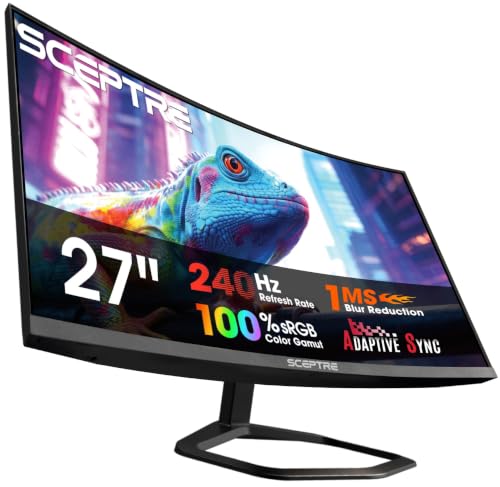
Sceptre 27-Inch Curved Gaming Monitor, FHD 1080p, 240Hz, 1500R, DisplayPort & HDMI x2, Built-in Speakers, Machine Black (C275B-FWT240 Series, 2026)
Chosen because it specifies FHD 1080p and 240Hz.
Check Price on AmazonThis is Sceptre’s 27-inch FHD curved gaming monitor with a 240Hz refresh rate, a 1500R curve, dual HDMI plus DisplayPort inputs, and built-in speakers. It is the cheapest way into the 240Hz club in this list.
Who It Suits
Buy this if you play competitive shooters seriously, you are on a tight budget, and you already have hardware capable of pushing high frame rates at 1080p. It suits a small bedroom or dorm desk where a 27-inch panel is the maximum that fits, and it suits a secondary gaming setup where 240Hz matters more than image quality.
Key Specs
- Size: 27 inches diagonal
- Resolution: FHD 1920 x 1080
- Refresh rate: 240Hz
- Curve: 1500R
- Inputs: DisplayPort, 2x HDMI
- Audio: built-in speakers
Strengths
At 27 inches, 1080p looks meaningfully sharper than it does at 32 inches, so the resolution compromise costs less here. Combined with 240Hz, that makes this a coherent esports monitor: you get fast refresh and acceptable sharpness without the pixel softness of a 32-inch FHD panel. The 1500R curve is a comfortable middle value that works for both gaming and light desktop use.
Built-in speakers and a generous input set make it a complete one-box solution, which matters at the budget end where every accessory adds up. Two HDMI ports mean a console can stay connected alongside a PC, or two machines can share the display without cable swapping.
Pros
- 240Hz at the lowest price tier in this list
- 1080p at 27 inches stays reasonably sharp
- DisplayPort plus dual HDMI suits multiple sources
- Built-in speakers complete the setup
- 1500R curve is comfortable for mixed use
Cons
- 1080p only — no extra desktop resolution for work
- Budget stand, typically tilt-only
- Basic colour performance out of the box
- 240Hz is only useful with a powerful CPU and GPU
How It Compares
Against the Sceptre Curved 27″ Prime Gaming, the Prime model offers 180Hz and a similar package, likely at a lower price — if you do not need 240Hz, buy the Prime and save. Against the SANSUI 32″ Curved 240Hz, this monitor’s 27-inch size keeps 1080p sharper, while the SANSUI offers more screen area. Against the LG 27GS60QC-B, the LG has QHD resolution and a 1000R curve but a lower 180Hz refresh; if you work as much as you play, the LG is the better monitor, and if you only play, the Sceptre is faster.
12. LG 27GS60QC-B Ultragear – Best Budget QHD

LG 27GS60QC-B Ultragear 27-inch Curved Gaming Monitor QHD (2560x1440) 180Hz 1ms 1000R AMD FreeSync HDR10 HDMIx2 DisplayPort Borderless Design Black Stabilizer DAS Crosshair FPS Counter - Black
Chosen because it specifies Black.
Check Price on AmazonThe 27GS60QC-B packs 27-inch QHD at 180Hz with a 1000R curve, 1ms response, AMD FreeSync and HDR10 into the budget tier. On paper it is the most feature-dense monitor per inch in this roundup.
Who It Suits
Buy this if you want sharp QHD text and a real gaming refresh rate but your desk is not deep enough for 32 inches or a 34-inch ultrawide. It suits students, small apartments, and dual-monitor setups where two 27-inch panels fit where two 32-inch panels would not. The 1000R curve is the tightest available at this size in this list, which makes it unusually immersive for a 27-inch display.
Key Specs
- Size: 27 inches diagonal
- Resolution: QHD 2560 x 1440
- Curve: 1000R
- Refresh rate: 180Hz
- Response time: 1ms class
- Adaptive sync: AMD FreeSync
- HDR: HDR10
- Inputs: HDMI and DisplayPort
Strengths
QHD at 27 inches is the sharpest pixel density in this roundup at a mainstream size. Text is crisp, icons are clean, and you get significantly more workspace than 1080p — enough for two full windows side by side with a narrow third column. That makes it a genuine work monitor as well as a gaming one.
A 1000R curve at 27 inches is aggressive, and because the panel is narrower, the wrap effect is proportionally stronger than at 32 inches. Whether that is a feature or a bug depends on your viewing distance: at 20 to 24 inches, it feels enveloping; at 30 inches, it may feel like the edges are turning away from you. 180Hz with FreeSync keeps motion smooth and tearing absent across a wide range of frame rates.
Pros
- QHD at 27 inches is the sharpest mainstream combination
- 1000R curve is unusually immersive for the size
- 180Hz with FreeSync suits fast games
- HDR10 support for compatible content
- Budget tier pricing for mid-tier specifications
Cons
- 1000R at 27 inches can feel too tight if you sit far back
- Smaller canvas than the 32-inch options
- HDR10 limited by panel brightness
- QHD at 180Hz still needs a capable GPU
How It Compares
Against the Sceptre Curved 27″ Prime Gaming, the LG wins decisively on resolution and curve tightness, while the Sceptre wins on port count and price. Against the LG 32GS60QC-B, this is the same formula at a smaller size — choose 27 inches for sharpness and small desks, 32 inches for immersion and desk coverage. Against the Samsung 27″ Essential S3, the LG is faster and sharper across every measurable dimension, so the Samsung only makes sense if you specifically want a gentle 1800R curve and a calmer look.
How to Choose
Choosing a curved monitor comes down to four numbers and one measurement: your viewing distance, and then curve radius, diagonal size, resolution, and refresh rate. Get those in the right order and the decision mostly makes itself.
Start With Your Desk Depth, Not the Monitor
Measure from your eyes to where the panel would sit — not from the wall to the desk edge, because your seating position matters. A simple rule: multiply 1.5 to 2 times the diagonal size in inches to get a comfortable eye distance in inches for immersive content.
- 27-inch panel: comfortable at roughly 24 to 32 inches of eye distance
- 32-inch panel: comfortable at roughly 26 to 36 inches
- 34-inch ultrawide: comfortable at roughly 28 to 38 inches
- 49-inch super-ultrawide: comfortable at 32 inches and up, with a desk at least 30 inches deep
If you sit closer than those ranges, an aggressive curve helps because it keeps the edges angled toward you. If you sit farther back, a tight curve works against you — the left and right thirds of the panel turn away from your eye line, and the image starts to look bowed.
Curve Radius: 1800R vs 1500R vs 1000R
The R number is the radius of the imaginary circle the panel describes, in millimetres. A smaller number means a tighter, more wrap-around curve.
| Curve | Radius | Character | Best For | Watch Out For |
|---|---|---|---|---|
| 1800R | 1800mm | Gentle arc, nearly flat in use | All-day text work, shallow desks, buyers unsure about curvature, living-room setups | Modest immersion benefit; two 1800R panels side by side meet at a noticeable angle |
| 1500R | 1500mm | Moderate, mainstream wrap | Mixed gaming and work, 27-inch and 34-inch sizes, first curved purchase | Compromise — neither the gentlest nor the most immersive |
| 1000R | 1000mm | Deep wrap, image surrounds you | Immersive single-player gaming, 32-inch and larger panels, close seating | Adjustment period for desktop work; straight lines may look slightly curved at first |
A useful sanity check: a 1000R curve on a 32-inch panel means you are effectively sitting at about one metre from a screen that wraps a substantial part of your field of view. That is comfortable at typical desk distances and uncomfortable if you sit far back, because the geometry assumes you are near the centre point.
27 vs 32 vs 34 Inches: What You Actually Gain
| Size | Typical Resolution | Pixel Density (approx.) | Real-World Gain | Desk Requirement |
|---|---|---|---|---|
| 27″ | FHD 1920×1080 | ~82 PPI | Smallest footprint, easy dual-monitor pairing | 20-24″ deep desk is enough |
| 27″ | QHD 2560×1440 | ~109 PPI | Sharp text, ~78% more pixels than FHD | 20-24″ deep desk is enough |
| 32″ | FHD 1920×1080 | ~69 PPI | Big screen, soft text — entertainment and gaming focus | 24-28″ deep desk |
| 32″ | QHD 2560×1440 | ~93 PPI | Large canvas with sharp text — the mixed-use sweet spot | 24-30″ deep desk |
| 34″ ultrawide | WQHD 3440×1440 | ~110 PPI | Roughly 1.5x the horizontal workspace of a 1440p 16:9 panel | 28-32″ deep desk |
| 49″ super-ultrawide | DQHD 5120×1440 | ~108 PPI | Equivalent to two 27″ QHD panels with no bezel gap | 30″+ deep, with desk length to spare |
The pattern is simple: at the same diagonal, going from FHD to QHD raises pixel density by about a third, and that shows up most in text rendering. If you read documents, write code, or edit spreadsheets, the resolution upgrade will affect your daily experience more than any gaming feature. If your monitor is purely for games and video, FHD at 27 inches is still perfectly acceptable, and FHD at 32 inches is a reasonable trade for a bigger picture.
Note that a 34-inch ultrawide is shorter than a 32-inch 16:9 panel in vertical height. If you work with long vertical documents or full-page layouts, the 32-inch 16:9 gives you more vertical pixels and a taller canvas, while the ultrawide gives you width. Pick based on which direction your work stretches.
VA vs IPS: The Panel Decision
Nearly every curved monitor on the market uses a VA panel, and that is not an accident. VA technology bends reliably without the corner light leakage that curved IPS panels tend to show, and it delivers much higher contrast — typically several times higher — which makes blacks look genuinely black instead of glowing gray in a dim room.
The trade is response time and viewing angle. VA panels typically show more smearing behind fast-moving objects, and off-axis viewing shifts colour and contrast more than IPS. IPS panels, meanwhile, deliver more accurate colour and faster pixel transitions, but at much lower native contrast, and curved IPS options are scarce and expensive.
- Choose VA if: you game in a dim room, you watch films and play single-player games with dark scenes, you want the deepest blacks for the money, and you sit centred in front of the screen.
- Choose IPS if: you do colour-critical work, you often view the screen from an angle, you value the fastest possible motion clarity, and you can accept lower contrast — and you are willing to buy flat rather than curved if the curved IPS options do not fit your budget.
For the curved monitors in this list, VA is the assumed panel class. That means the right question is not “VA or IPS” but “which VA panel handles motion best for my games” — and the practical answer is to prioritise higher refresh rates, since refresh rate does more for perceived motion clarity than the panel technology label alone.
Refresh Rate: Match It to Your GPU, Not the Spec Sheet
A 240Hz monitor connected to hardware that delivers 90 frames per second gives you no benefit over a 144Hz panel. Work backwards instead:
- Entry-level GPU at 1080p: 144Hz to 180Hz is realistic in most games; 240Hz only in light titles like esports shooters with low settings.
- Mid-range GPU at 1080p: 240Hz becomes reachable in competitive titles, which makes a 240Hz FHD panel a sensible buy.
- Mid-range GPU at QHD: 144Hz to 180Hz in most games, which is why 180Hz QHD monitors are the practical sweet spot.
- High-end GPU at QHD: 240Hz and above becomes possible, though at a large price premium for the panel.
- Any GPU at 5120×1440: expect to lean on adaptive sync heavily; 144Hz is a realistic ceiling for demanding games.
Adaptive sync — FreeSync in most of these monitors — is the feature that makes any of this pleasant, because it matches the panel’s refresh to whatever frame rate your system produces. Without it, a monitor running above or below its native refresh produces tearing or stutter. Treat adaptive sync support as more important than the peak refresh number.
Build, Stand, and the Ownership Details Nobody Mentions
Most of the money in a monitor goes to the panel, which means the stand is where manufacturers economise. At the budget tier, expect tilt-only adjustment, which forces you to raise the monitor with books or buy an arm. At the mid and premium tiers, look for height adjustment and VESA mounting holes — 100 x 100mm is the standard, and it is worth confirming before buying a desk arm.
Weights matter more than people expect on larger panels. A 34-inch ultrawide typically weighs noticeably more than a 27-inch, and a 49-inch super-ultrawide can be heavy enough to exceed the rating of a budget monitor arm. Check the arm’s weight capacity against the panel’s weight before ordering both.
What wears first: the panel backlight dims gradually over years of use, but that is rarely the failure point. The more common long-term annoyances are a failing power supply (usually an external brick or an internal board), dead pixels that appear after the warranty period, and a stand that develops wobble at the joint. Cable management clips and covers are the first plastic parts to break.
Cleaning is straightforward but worth doing correctly. Use a dry microfibre cloth first. For smudges, dampen the cloth — never spray liquid onto the screen — with distilled water or a screen cleaner made for coated displays. Do not use paper towels, glass cleaner with ammonia, or alcohol on an anti-glare coating, because those can cloud the surface permanently. Clean with the monitor off and cool, and give it a minute before powering back on.
Common mistakes worth avoiding:
- Buying a tight curve for a deep desk. A 1000R panel viewed from far back looks distorted at the edges. Match the curve to how close you actually sit.
- Paying for 240Hz without the GPU. Spend the difference on a better graphics card or a higher-resolution panel instead.
- Ignoring the vertical height difference between ultrawide and 16:9. A 34-inch ultrawide is wider but shorter than a 32-inch 16:9.
- Forgetting about the VESA pattern and arm weight rating. This is the single most common regret after a large curved purchase.
- Setting the monitor too bright in a dark room. Most panels in this class benefit from being dialled down to roughly 120 nits in dim conditions; a brighter setting washes out black levels and strains the eyes over long sessions.
- Skipping the cable check. Confirm which cable your GPU and monitor both support for the highest refresh rate — DisplayPort is usually required to hit the panel’s maximum, while HDMI may cap it lower.
A Worked Example: Cost Per Year of Ownership
Suppose you are choosing between a budget 27-inch FHD 240Hz panel and a mid-range 32-inch QHD 180Hz panel, and you plan to keep whichever you buy for five years. The budget panel might cost roughly one third less up front. Over five years, that difference works out to a modest amount per month. Now weigh what you get for it: the 32-inch QHD panel gives you about 78% more pixels, which means fewer scrolls, more visible code, and sharper text every working day. If you use the monitor for work five days a week, the extra cost per working day is small — often less than the price of a coffee — which is why resolution upgrades tend to be the best value in monitor buying. The exception is the pure competitive player who only plays fast shooters: for that buyer, the 240Hz budget panel is the better allocation, because frame rate is the only specification that affects their outcome.
Run the same logic on the premium tier. A 49-inch super-ultrawide costs several times a mid-range 32-inch, but if it replaces two separate 27-inch QHD monitors, the comparison is no longer one monitor against one monitor. Add the cost of a second stand or arm, the desk space, and the cable clutter, and the gap narrows considerably. That does not make it cheap, but it makes the price legible — you are buying a workspace, not just a screen.
Frequently Asked Questions
Is a curved monitor actually better than a flat one?
For screens 32 inches and larger, yes for most people. A curve keeps the far left and right edges at a more consistent distance from your eyes, which reduces the amount of refocusing your eyes do as you scan across the screen. For 27 inches and below at a normal desk distance, the benefit is smaller and largely a matter of preference. If you often view the screen from an angle or share it with someone sitting beside you, a flat panel is the safer choice.
What does the R in 1500R or 1000R mean?
It is the radius of the circle the screen would form if it continued, measured in millimetres. A 1500R panel describes a circle with a 1500mm radius; a 1000R panel describes a tighter 1000mm circle. Smaller numbers mean a deeper, more wrap-around curve, and larger numbers mean a gentler, nearly flat arc.
Should I get 27-inch QHD or 32-inch QHD?
Both deliver QHD resolution, so the difference is size and pixel density. A 27-inch QHD panel has higher pixel density, which makes text marginally sharper, and it fits shallower desks and dual-monitor setups. A 32-inch QHD panel gives you a physically larger canvas at slightly lower density, which many people find more comfortable for long sessions and more immersive for games. If your desk is under 24 inches deep, choose 27 inches; otherwise 32 inches is usually the better experience.
Do I need 240Hz, or is 180Hz enough?
180Hz is enough for the vast majority of players and is a clear improvement over 60Hz or 144Hz. 240Hz is a further step that is most noticeable in fast competitive titles where you track targets across the screen and your hardware can consistently deliver high frame rates. If your GPU cannot push well above 180 frames per second at your chosen resolution, spending extra on 240Hz is wasted.
Will a curved monitor work with my game console?
Yes, but with caveats. Current consoles support standard 16:9 resolutions well, so a 27-inch or 32-inch curved monitor at FHD or QHD will work normally. Ultrawide resolutions like 3440 x 1440 and 5120 x 1440 are generally not supported by consoles, so an ultrawide panel will display console output with black bars on the sides. If console gaming is a large part of your use, stay with a 16:9 curved monitor.
How deep does my desk need to be for a 34-inch ultrawide?
Aim for at least 28 inches of usable depth between your eyes and the panel, and preferably 30 or more. Ultrawides are wide enough that sitting too close forces your head to turn rather than your eyes to move, which becomes tiring. If your desk is shallower, a 32-inch 16:9 panel with a tight curve is the better fit for the same budget.
Is the curve hard to get used to for work?
Most people adapt within a few days, and a tighter 1000R curve takes longer than a 1500R or 1800R one. The initial sensation is that straight horizontal lines bow slightly, particularly in spreadsheets and design software. If you work with precise straight lines all day and cannot tolerate any adjustment period, a gentler 1800R curve or a flat panel is the lower-risk choice.
What should I check before buying a monitor arm for a curved monitor?
Check three things: the VESA mounting pattern (100 x 100mm is the common standard, but confirm on your specific model), the weight capacity of the arm against the panel’s actual weight, and the arm’s reach compared with the panel’s width. Larger curved panels are heavier and wider than they look in photos, and an under-rated arm will sag or drop. For a 49-inch panel, a heavy-duty arm or the manufacturer’s own stand is usually the practical answer.
The Short Version by Situation
If you want one monitor for everything and your desk is a normal







Write Your Review
No reviews yet. Be the first to share your experience!