
Key takeaways
- Best all-round work monitor: Dell UltraSharp U2724D. Its 27-inch QHD IPS Black panel, 120Hz refresh rate, USB hub, and ergonomic stand suit office work and general use.
- Best for gaming and work: LG 27GP850-B. Its 2560 × 1440 Nano IPS panel and up-to-165Hz refresh rate make motion smooth without sacrificing useful desktop resolution.
- Best for color-conscious creative work: BenQ PD2705Q. This 27-inch QHD monitor emphasizes factory color calibration, sRGB coverage, and a practical professional stand.
- Best for maximum text and image detail: A 27-inch 4K IPS monitor such as the Dell UltraSharp U2723QE. The 3840 × 2160 resolution is especially useful for photography, video editing, and dense spreadsheets.
- Best for a lower-cost gaming setup: A 27-inch QHD VA gaming monitor such as the Samsung Odyssey G5 27-inch. It commonly offers a high refresh rate and strong contrast, although viewing angles and motion clarity may be less consistent than IPS.
The best 27 inch monitors for most people are 27-inch 1440p IPS models: they provide noticeably sharper text than 1080p, enough workspace for documents and creative apps, and a comfortable balance between price and desk space. Choose a 4K model for detailed design or crisp text, a 144–180Hz monitor for gaming, and an adjustable stand if you spend several hours at the desk.
Quick picks by type of user
- Best all-round work monitor: Dell UltraSharp U2724D. Its 27-inch QHD IPS Black panel, 120Hz refresh rate, USB hub, and ergonomic stand suit office work and general use.
- Best for gaming and work: LG 27GP850-B. Its 2560 × 1440 Nano IPS panel and up-to-165Hz refresh rate make motion smooth without sacrificing useful desktop resolution.
- Best for color-conscious creative work: BenQ PD2705Q. This 27-inch QHD monitor emphasizes factory color calibration, sRGB coverage, and a practical professional stand.
- Best for maximum text and image detail: A 27-inch 4K IPS monitor such as the Dell UltraSharp U2723QE. The 3840 × 2160 resolution is especially useful for photography, video editing, and dense spreadsheets.
- Best for a lower-cost gaming setup: A 27-inch QHD VA gaming monitor such as the Samsung Odyssey G5 27-inch. It commonly offers a high refresh rate and strong contrast, although viewing angles and motion clarity may be less consistent than IPS.
What resolution should a 27-inch monitor have?
Resolution determines how much detail fits on the screen, but it also affects text size, graphics-card load, and price.

Samsung 27" (S30GD) Essential Monitor with IPS Panel
Included for 'Best 27 Inch Monitors for Work, Gaming, and Everyday Use' as a relevant option in this category; details come from the product listing.
View on Amazon
Dell 27 Monitor - SE2726H - 27-inch FHD (1920x1080) 144Hz 1ms Display, in-Plane Switching (IPS) Technology, AMD FreeSync™, TÜV 3-Star 2X HDMI, Tilt
Included for 'Best 27 Inch Monitors for Work, Gaming, and Everyday Use' because the listing specifies SE2726H and 27-inch FHD (1920x1080) 144Hz 1ms Display, details this guide uses to compare options.
View on Amazon
Acer 27in FHD 1920x1080 IPS 120Hz Gaming Monitor | Office KB272 G0bi
Included for 'Best 27 Inch Monitors for Work, Gaming, and Everyday Use' because the listing specifies Office KB272 G0bi, details this guide uses to compare options.
View on Amazon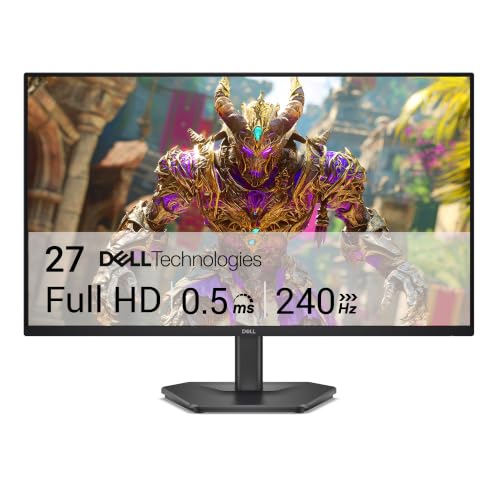
Dell 27 240Hz Gaming Monitor - SE2726HG - 27-inch FHD (1920x1080) Display, in-Plane Switching (IPS) Technology, AMD FreeSync Premium, TÜV 3-Star, 2X HDMI, DisplayPort 1.4, Tilt
Included for 'Best 27 Inch Monitors for Work, Gaming, and Everyday Use' because the listing specifies SE2726HG and 27-inch FHD (1920x1080) Display, details this guide uses to compare options.
View on Amazon| Resolution | Pixel density at 27 inches | Best suited to | Main compromise |
|---|---|---|---|
| 1920 × 1080 | About 82 pixels per inch | Basic office work, streaming, and entry-level gaming | Text and fine details look less crisp |
| 2560 × 1440 | About 109 pixels per inch | Most workstations, mixed use, and PC gaming | Costs more and requires more graphics power than 1080p |
| 3840 × 2160 | About 163 pixels per inch | Photo editing, 4K video, design, and very sharp text | Requires scaling and a stronger GPU for demanding games |
For a typical viewing distance of roughly 50–75 centimetres, 1440p is the most balanced choice. A 27-inch 1080p screen can be perfectly usable, but its relatively low pixel density makes letters and diagonal lines look softer. A 4K screen delivers the sharpest image, but operating systems often need display scaling—commonly 125% or 150%—so the extra pixels improve clarity rather than simply fitting four times as much usable text.
Refresh rate: how much speed do you need?
Refresh rate is the number of times the display updates each second. A 60Hz monitor is adequate for email, spreadsheets, writing, and video. Moving to 75Hz or 100Hz makes scrolling feel smoother, while 144Hz to 180Hz is worthwhile for fast games and responsive cursor movement.
- 60–75Hz: Fine for basic office work and low-cost setups.
- 100–120Hz: A strong everyday choice for smoother scrolling, casual gaming, and general productivity.
- 144–180Hz: Best for competitive or action gaming, provided your computer can produce a similar frame rate.
- 240Hz and above: Primarily for competitive players who prioritize latency and already have hardware capable of high frame rates.
Do not choose refresh rate in isolation. A 180Hz 1080p display may be less useful for a spreadsheet-heavy job than a 120Hz 1440p monitor. Adaptive-sync support, such as AMD FreeSync or a compatible variable-refresh feature, can also reduce tearing when game frame rates fluctuate.
IPS, VA, or OLED?
IPS
IPS panels are the safest general-purpose recommendation. They normally provide consistent colors and wide viewing angles, making them suitable for documents, creative work, shared screens, and gaming. Modern fast IPS models can reach 144Hz or higher. Their usual weakness is grayish black levels in a dark room, especially compared with VA or OLED.
VA
VA panels offer substantially higher contrast than conventional IPS, so dark games and films can look deeper. They are often good value at 27 inches and commonly appear in curved gaming monitors. The trade-off can be dark-level smearing in fast scenes and more visible color or brightness changes when viewed from an angle.
OLED
OLED provides near-instant pixel response, excellent contrast, and very deep blacks. It is attractive for gaming and video, but 27-inch OLED monitors tend to cost more and require sensible desktop habits. Static elements such as taskbars and application windows can contribute to image retention over long periods. Use the panel’s pixel-refresh and screen-protection features, keep brightness reasonable, and avoid leaving a static image displayed unnecessarily.
Stand adjustability matters more than many buyers expect
A monitor that supports only tilt may force you to raise your shoulders or bend your neck. Look for height adjustment, tilt, swivel, and 90-degree pivot if you read long documents or use portrait orientation.
| Stand feature | Useful minimum | Why it matters |
|---|---|---|
| Height adjustment | At least 100mm | Lets you place the top bezel near eye level |
| Tilt | About -5° to 20° | Helps aim the panel without leaning forward |
| Swivel | About 30° each direction | Useful for sharing the screen or changing seating position |
| Pivot | 90° rotation | Helpful for coding, documents, and long web pages |
| VESA mount | 100 × 100mm is common | Allows an arm or wall mount if the supplied stand is limited |
Check the stand footprint before buying. A 27-inch monitor can fit the panel width of a small desk but still consume considerable depth through a broad base. A VESA arm can recover roughly 15–25 centimetres of desk depth, but confirm the monitor’s weight without its original stand and the arm’s load rating.
Choosing by desk and workload
| Your situation | Recommended specification | Why |
|---|---|---|
| Small desk, mostly documents | 27-inch, 1440p IPS, 75–120Hz, height-adjustable stand | Good text sharpness without excessive GPU or desk requirements |
| Office work plus gaming | 27-inch, 1440p IPS, 144–180Hz, adaptive sync | Combines comfortable workspace with smooth game motion |
| Photo or video editing | 27-inch, 4K IPS, wide color gamut, reliable calibration controls | Prioritizes detail and accurate color over maximum frame rate |
| Dark-room gaming and films | 27-inch VA or OLED, 144Hz or higher | Improves contrast and black-level depth |
| Dual-monitor workstation | Matching 27-inch QHD IPS models with thin bezels | Creates consistent scaling, color, and viewing geometry |
Ports and connection details to check
DisplayPort is usually the safest connection for a high-refresh-rate PC. HDMI 2.0 is commonly sufficient for 1440p at high refresh rates, while HDMI 2.1 is more relevant to 4K high-refresh gaming and newer consoles. Check the exact port version rather than assuming every HDMI socket has the same capability.
USB-C is valuable on a laptop desk, but distinguish between a USB-C data port and a full USB-C display connection with power delivery. A monitor that supplies 65W or 90W can charge many productivity laptops through one cable. A built-in USB hub is convenient, while Ethernet on business-oriented models can reduce cable clutter. These features often increase cost, so do not pay for them if your computer already has accessible ports and you use a desktop tower.
Ownership realities and setup mistakes
- Clean gently: Turn off and unplug the display, then use a clean microfiber cloth. For stubborn marks, lightly dampen the cloth with water; do not spray cleaner directly onto the panel.
- Use the correct scaling: Start with the operating system’s recommended resolution. If 4K text is too small, increase scaling rather than lowering the panel resolution.
- Enable the advertised refresh rate: Some systems default to 60Hz even when the monitor supports 144Hz or more. Select the higher rate in display settings after connecting it.
- Calibrate expectations: “HDR compatible” does not necessarily mean strong HDR. Effective HDR generally benefits from high brightness, local dimming or OLED-level contrast, and wide color coverage.
- Protect the stand and cables: Repeatedly twisting a DisplayPort or USB-C cable at the connector can cause intermittent signal problems. Leave enough slack for height adjustment and pivoting.
For most shoppers, start with a 27-inch 1440p IPS monitor that has at least 100Hz, adaptive sync, DisplayPort, and a height-adjustable stand. Move to 4K when image detail and color-critical work matter more than gaming frame rate; choose VA or OLED when contrast is the priority; and spend extra on USB-C or a premium stand only when those features will simplify your everyday desk setup.

Write Your Review
No reviews yet. Be the first to share your experience!